

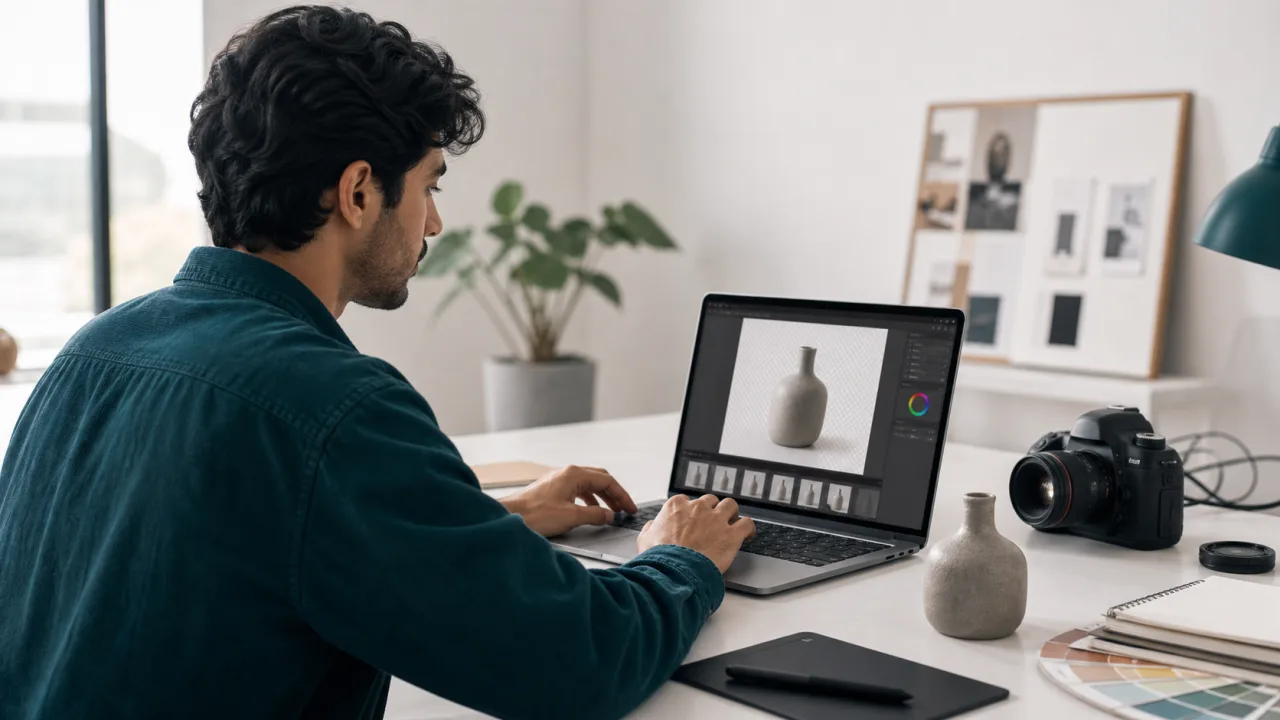
Background Remover strips simple, solid-color backgrounds from images right in your browser. It works best on product photos, headshots, and graphics where the subject sits against a plain backdrop like white, black, or a single color. There’s no upload to a server—processing happens locally on your device.
What does Background Remover do?
This tool analyzes your image and removes a uniform background color, leaving the main subject on a transparent background. It’s built for straightforward cases: a coffee mug on a white table, a pair of shoes on a gray floor, or a logo on a solid blue field. It does not use complex AI segmentation to handle busy scenes, hair, or fur. Instead, it targets a single background color and removes pixels that match it, with a tolerance setting you can adjust.
How do you use Background Remover?
- Paste an image URL or description into the text box. The input expects a link to your image or a clear description of what you want removed. For best results, use a direct image URL (ending in .jpg, .png, etc.).
- Click “Remove Background.” The tool processes the image locally in your browser. No data is sent to a server.
- Adjust the tolerance if needed. If the background isn’t fully removed or parts of your subject disappear, tweak the tolerance slider. Lower tolerance removes only exact color matches; higher tolerance removes a wider range of similar colors.
- Download your result. Once you’re happy, save the image with a transparent background (PNG format).
When should you use Background Remover?
Use it when you need a quick, clean cutout for:
- E-commerce listings: Turn a product photo on a white table into a transparent PNG for Amazon, Etsy, or Shopify.
- Presentations and documents: Drop a headshot or product image onto a slide without a distracting background.
- Social media graphics: Isolate a logo or object to layer over a new background.
- Design mockups: Extract a simple icon or shape from a solid-colored canvas.
It’s ideal for US students making posters, teachers creating worksheets, marketers building ad creatives, and small business owners prepping product shots. If your image has a plain, consistent background, this tool can save you a trip to Photoshop.
What are the limits?
Background Remover is honest about what it can’t do. It struggles with:
- Complex backgrounds: Scenes with multiple colors, gradients, or patterns won’t work well.
- Fine details: Hair, fur, feathers, and transparent objects (glass, smoke) often leave halos or get partially removed.
- Low contrast: If the subject and background share similar colors, the tool may remove parts of your subject.
- Shadows and reflections: These can confuse the color-matching algorithm.
It also doesn’t generate a new background—you get a transparent PNG. For advanced needs, you’ll need a dedicated AI segmentation tool. But for simple, solid-color backgrounds, this gets the job done quickly and privately.
Why use this instead of uploading to a website?
Because it runs locally, your images never leave your computer. That’s a plus for privacy-sensitive work like ID photos or client mockups. It’s also fast—no waiting for uploads or server queues. And it’s free, with no sign-up or watermarks. Just paste, click, and download.
Tips for better results
- Start with the highest-resolution image you have.
- Ensure the background is as uniform as possible—avoid shadows or wrinkles.
- If the tool removes too much, lower the tolerance. If it leaves background bits, raise it.
- For best results, use images where the subject is clearly distinct from the background.
Give it a try with a product photo on a white background—you’ll likely get a clean cutout in seconds.