Translate Image to English: How Photo Translation Works
Published November 6, 2026 · 8 min read
Translate Image to English: How Photo Translation Works
You are standing in front of a restaurant menu in Tokyo, a street sign in Cairo, or a contract clause in Berlin — and you need to know what it says, now. The ability to translate image to English turns your phone camera into a universal reader: point, capture, and the foreign text becomes English in seconds. This guide explains how photo translation actually works, the best ways to use it across travel, work, and study, and how to get results you can trust.
How Image Translation Works: OCR Plus Machine Translation
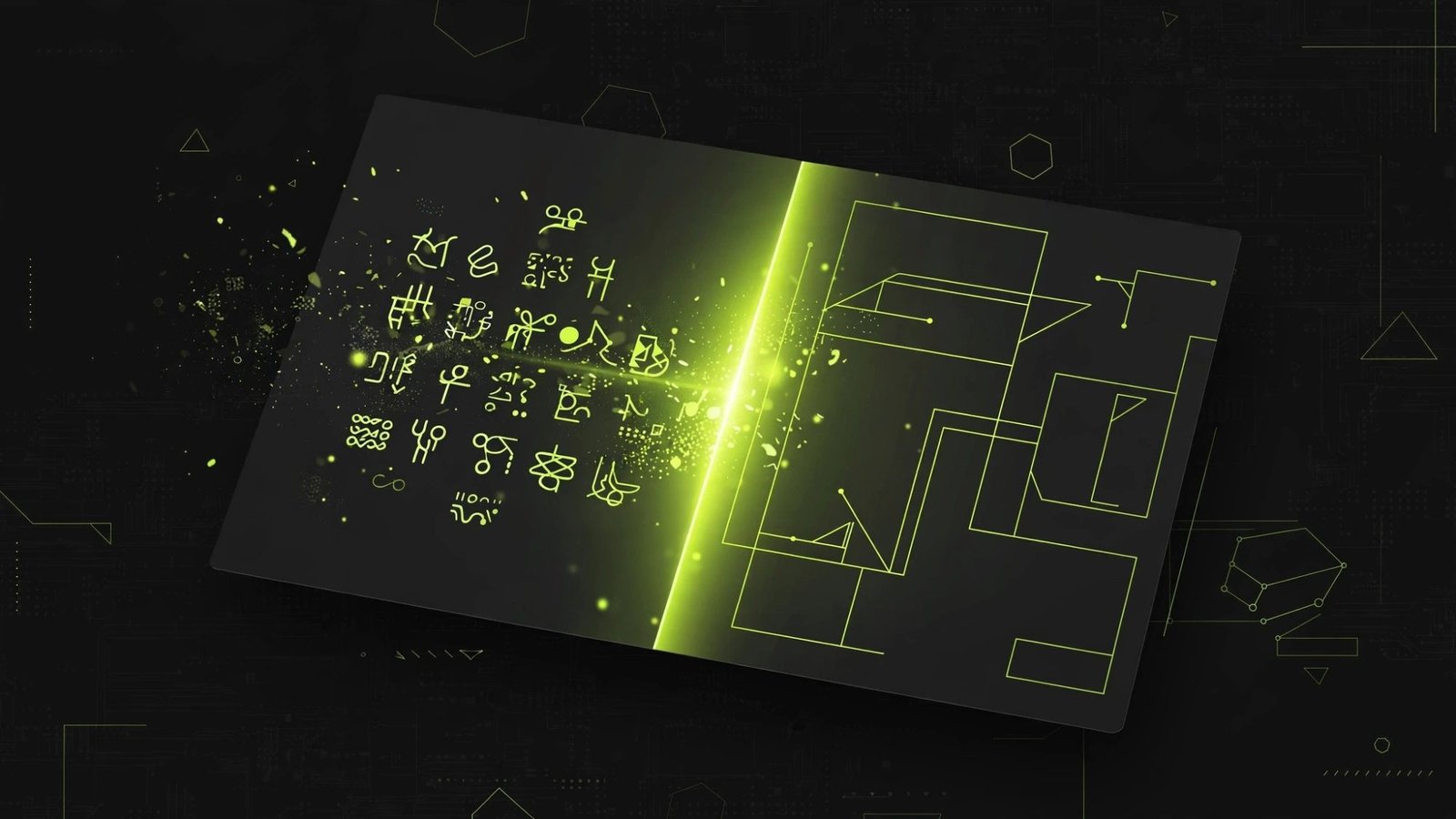
Translating a photo involves two distinct technologies working in sequence:
- Optical character recognition (OCR). The software first identifies that there is text in the image, finds where each line sits, and recognizes the individual characters — essentially "reading" the photo the way your eyes do. Modern OCR handles dozens of scripts, from Latin and Cyrillic to Chinese, Arabic, and Devanagari.
- Machine translation. Once the text is extracted, it is translated into English the same way typed text would be — using neural machine translation models trained on massive bilingual datasets.
Understanding this two-step pipeline matters because errors can come from either step. A blurry photo causes OCR mistakes (misread characters), while idioms and ambiguous phrasing cause translation mistakes (correctly read, wrongly interpreted). When a result looks odd, the photo is usually the culprit more often than the language model.
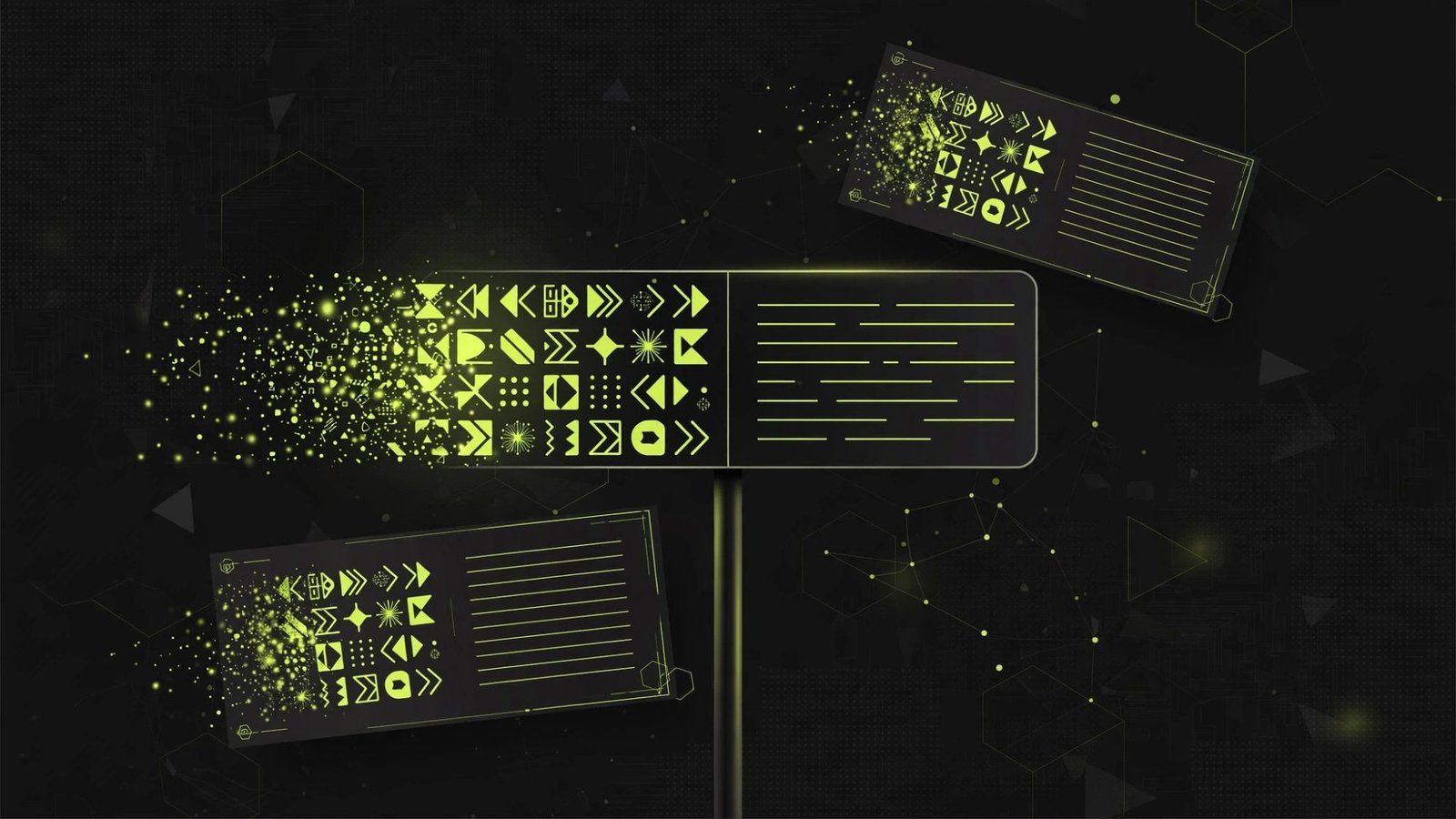
Most tools offer two modes: live camera mode, which overlays the English translation on your screen in real time as you point the camera, and photo upload mode, which processes a saved image. Live mode is magical for signs and menus; upload mode tends to be more accurate because it can spend more processing time on a single still frame.
For quick text extraction before translating, FiftyGPT's AI Translator handles pasted and typed text across dozens of languages — useful when you want to refine or re-translate what the camera picked up.
Everyday Uses: Travel, Work, and Study
Travel: Menus, Signs, and Tickets
This is the classic use case. A photo of a Japanese ramen menu, a Spanish train departure board, or a Thai street sign becomes readable instantly. Practical tips: translate the menu before you sit down when possible, and screenshot the translation so you still have it if you lose signal inside the restaurant.
Work: Documents and Screenshots
Contracts, invoices, product labels, and compliance documents arrive in other languages regularly. Image translation gives you a fast first-pass understanding — enough to decide whether something needs a professional translator or is routine. It is also handy for screenshots: error messages, foreign-language software interfaces, and chat conversations can all be captured and translated.
Study: Textbooks and Research
Students working with sources in other languages can photograph textbook pages, archival material, or whiteboard notes and get a working English version for study purposes. It is a research accelerator, not a citation source — always verify key quotes against a proper translation.
How to Get Accurate Results: 7 Practical Tips
Accuracy is mostly determined before you tap translate. These habits make the biggest difference:
- Get close and fill the frame. The text should occupy most of the image. Tiny text in a wide shot is the number one cause of OCR errors.
- Shoot straight-on. Angled photos distort letter shapes. Hold the phone parallel to the surface.
- Maximize light, minimize glare. Natural daylight is ideal. Avoid flash reflections on glossy menus and screens — tilt slightly to kill the glare.
- Hold still. Motion blur destroys character recognition. Brace your elbows or rest the phone on a surface for the shot.
- Capture one block of text at a time. A full page of dense text translates less accurately than two or three separate captures of smaller sections.
- Prefer printed over handwritten text. Clean printed fonts translate far more reliably than handwriting or decorative scripts.
- Check the detected language. Auto-detect is good but not perfect — if the result is gibberish, manually set the source language and retry before assuming the tool is broken.
What to Double-Check: The Limits of Photo Translation
Image translation is a powerful first draft, not a final authority. Treat it accordingly:
- Critical details. Addresses, phone numbers, medication dosages, allergy warnings, contract terms, and safety instructions deserve human verification. A misread digit in a dosage or a flipped negation in a contract clause can have real consequences.
- Idioms and wordplay. "It's raining cats and dogs" translated literally into another language — and back — produces nonsense. Menus and marketing copy are full of idioms.
- Context-dependent words. Many words have multiple meanings, and a photo gives the translator less surrounding context than a full document. If a translation seems off, translate a larger crop that includes neighboring sentences.
- Stylized and artistic text. Logos, calligraphy, graffiti, and decorative fonts defeat OCR regularly. If the app cannot even detect the text, retype it manually.
- Handwriting. As noted in the FAQ, neat handwriting sometimes works; most real-world handwriting does not. For anything important, type it out.
- Privacy. Every photo you translate through a cloud service is processed on external servers. Avoid translating sensitive personal documents casually, and check the provider's data-retention policy if you handle client or medical material.
Camera Mode vs. Upload Mode vs. Retyping: Which to Use
| Situation | Best method | Why |
|---|---|---|
| Street signs, menus, quick lookups | Live camera mode | Instant, no capture needed |
| Documents, dense pages | Photo upload mode | More processing time per image, higher accuracy |
| Handwriting, stylized text | Retype manually | OCR fails too often to trust |
| Legally binding or safety-critical text | Professional translator | Liability and accuracy requirements |
A sensible workflow for important documents: run image translation for the fast first pass, retype any sections the OCR garbled, refine the English with a translation tool, and have a bilingual colleague or professional verify the final version.
Translating Screenshots, Memes, and Social Media Posts
Not every image you need to translate is a street sign. Screenshots and social posts are increasingly common sources of foreign text, and they come with their own quirks.
Screenshots are actually ideal for OCR: the text is pixel-perfect, evenly lit, and distortion-free. Error messages, app interfaces, chat conversations, and foreign-language settings menus translate very reliably from screenshots. The main failure mode is tiny UI text — zoom in on the screenshot before translating, or crop to the relevant region so the text fills the frame.
Social media posts and memes are harder. Stylized fonts, text over busy backgrounds, curved or rotated lettering, and intentional misspellings all degrade accuracy. For these, crop tightly around the text block to remove background noise, and expect to fix a word or two by hand. Slang-heavy captions may translate literally and lose the joke — if the result reads oddly, that is usually why.
Comics and manga panels sit in between: speech bubbles with clean lettering translate well, while sound-effect lettering drawn as art usually does not get detected at all. Translate panel by panel rather than whole pages for the best results.
One workflow tip that applies to all of these: screenshot first, translate second. Even in live camera mode, capturing a still image and processing it as an upload gives the OCR engine more time per image and consistently produces cleaner results than the real-time overlay.
Frequently Asked Questions
How do I translate image to English from a photo?
Use a translation app with camera mode: point it at the text or upload a saved photo, select the source language (or auto-detect), and choose English as the target. The app reads the text with OCR, then translates it.
How accurate is image translation?
Accuracy is high for clear, well-lit photos of printed text in common languages, and lower for handwriting, stylized fonts, low light, or rare languages. Always double-check critical details like addresses, dosages, and legal text.
Can I translate image to English without the internet?
Many translation apps let you download language packs for offline camera translation. Download the packs before you travel, since offline mode may not support every language pair.
Does image translation work on handwriting?
Sometimes, but it is the weakest case. Neat, consistent handwriting in a common script translates reasonably; cursive, cramped, or stylized handwriting often produces errors. Retype critical handwritten text instead.
Is it safe to translate photos of personal documents?
Be cautious. Translating sensitive documents through a cloud service means the image is processed on someone else's servers. For passports, contracts, or medical records, prefer a trusted provider and check its privacy policy — or use a professional translator for anything legally binding.
Keep reading
- Reading Time Calculator: Estimate How Long Any Text Takes to Read
- AI Essay Grader: How Automated Essay Scoring Works
- How to Cut Words From an Essay Without Losing Your Argument