Background Remover vs Photoshop: Honest Comparison (2026)
Published October 29, 2026 · 7 min read
Background Remover vs Photoshop: Which Should You Actually Use?
The honest answer to the background remover vs Photoshop debate: it depends on what you are making. For quick, everyday cutouts — a product photo, a headshot, a graphic for a slide — a free AI background remover is faster, simpler, and costs nothing, and its results are genuinely good. For professional retouching, complex compositing, and pixel-perfect control, Photoshop is still the more powerful tool, and no one-click service replaces it. This guide compares them fairly so you can pick the right tool for each job.
Speed: The Background Remover Wins by a Mile
Speed is not close. A background remover takes seconds: upload the image, the AI detects and isolates the subject, you download a transparent PNG. The entire workflow fits in under a minute, including the time you spend finding the file.
Photoshop, even with its one-click Remove Background and Select Subject features, involves launching a heavy application, importing the image, running the selection, refining the mask if needed, and exporting properly. An experienced user might do it in a few minutes; a beginner can easily spend twenty. When you have one image and a deadline, the dedicated remover wins every time.
Quality on Simple Cutouts: Closer Than You Think
For straightforward images — a person against a plain wall, a product on a white sweep, a pet on grass — modern AI background removers produce results that are difficult to distinguish from careful Photoshop work. Edge detection around hair and soft boundaries has improved dramatically, and for web-resolution output the difference is often invisible.
Photoshop pulls ahead when the mask needs judgment rather than detection: wispy hair against a busy background, glass and transparent materials, motion blur, or subjects with colors similar to the backdrop. There, a skilled operator with refine-edge tools will beat any automatic system. The key word is skilled — an unskilled Photoshop user often produces worse results than the AI, because manual masking done badly leaves obvious halos and choppy edges.
Cost: Free vs a Monthly Subscription
A free AI background remover costs exactly nothing, with no software to install and no account required in many cases. Photoshop requires a Creative Cloud subscription, which is a meaningful recurring cost, especially if background removal is the only task you need it for.
The math is simple: if background removal is one task among many in a design workflow — retouching, compositing, layout work — the Photoshop subscription pays for itself across all of them. If background removal is the whole job, paying monthly for Photoshop is hard to justify when free tools do it in seconds.
Learning Curve: One Click vs a Profession
A background remover has effectively no learning curve: upload, wait, download. Anyone can use it on the first try, including people who have never edited an image.
Photoshop is professional software with a genuine learning curve. The one-click features are easy to find, but getting good results consistently — understanding layers, masks, refine edge, defringing, export settings — takes real practice. That investment pays off for professionals; for everyone else, it is overhead.
Control and Refinement: Photoshop's Home Turf
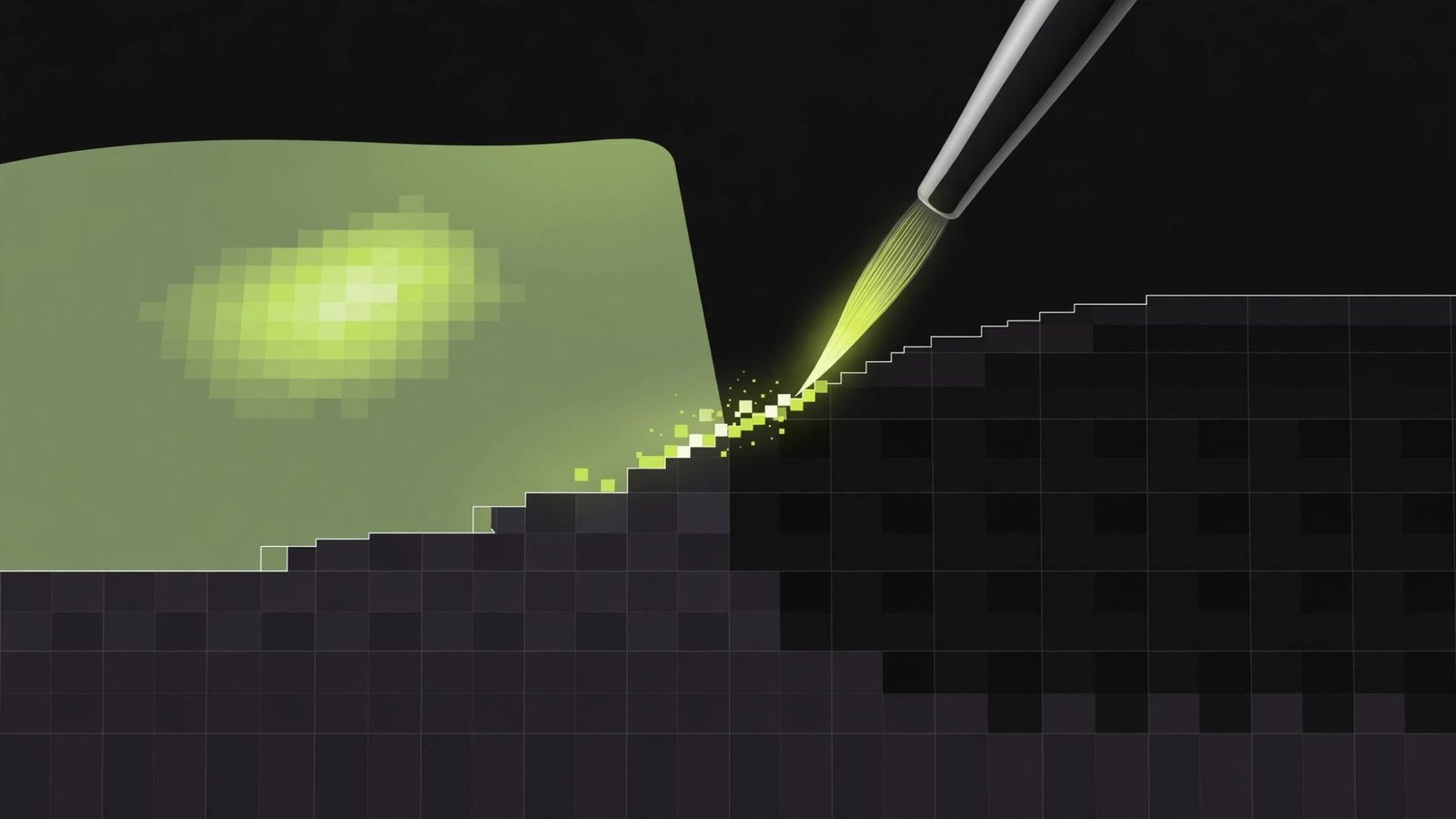
This is where Photoshop genuinely earns its reputation. A background remover gives you one result; you can accept it or try again, but you cannot direct the process. Photoshop lets you:
- Manually paint and refine the mask pixel by pixel
- Combine automatic selection with manual brushwork
- Remove color fringing and edge halos precisely
- Blend the cutout into a new scene with matched lighting and shadows
- Work non-destructively, so every decision is reversible
For compositing work — placing a subject into a new environment so it looks like it was photographed there — this control is not optional. No background remover produces a finished composite; it produces a cutout. The finishing work is Photoshop's domain.
Batch Processing: It Depends on Volume
Removing backgrounds from fifty product photos one at a time is painful in any tool. Photoshop handles batch work through actions and scripts, which are powerful but take setup and expertise. Some background remover services offer batch or API processing, which can be the faster route for simple, uniform images.
For a small batch of varied images, the one-click remover processed sequentially is usually fastest overall. For large, standardized catalogs where consistency matters, a scripted Photoshop workflow or a remover API both work — the choice comes down to whether you value control or throughput.
Output Quality and Resolution
Free background removers sometimes cap output resolution or apply compression. For web graphics, social media, and presentations, this rarely matters. For print work, large-format output, or client deliverables, Photoshop's full-resolution, fully controlled export pipeline is the safer choice.
Always check what resolution your remover exports before committing to it for important work. If the output is smaller than your source, and you need every pixel, that alone can settle the background remover vs Photoshop question.
The Practical Workflow Most People Should Use
Here is the honest recommendation that serves most people well: use a free background remover as your default tool. It handles the majority of cutout tasks in seconds at zero cost. Keep Photoshop (or a free editor like GIMP) in reserve for the cases where the automatic result is not good enough — difficult edges, compositing, print output.
This two-tier approach gives you the speed of AI for routine work and the control of a real editor for demanding work, without paying for a subscription you rarely use or struggling through manual masking for simple jobs.
When Each Tool Clearly Wins
Choose the background remover when: you need a quick cutout, the image is straightforward, you are working at web resolution, you do not own Photoshop, or you are processing simple images in volume.
Choose Photoshop when: the edges are genuinely difficult, you are compositing the subject into a new scene, you need print-quality output, you require batch scripting with custom logic, or background removal is one step in a larger design project.
Choose both when: you want speed and quality — generate the cutout with the remover, then open it in Photoshop or a free editor for final refinement. This hybrid workflow is what many professionals actually do.
Frequently Asked Questions
Is a free background remover as good as Photoshop?
For simple cutouts it can be nearly as good, and it is far faster. For complex masking, batch workflows, and pixel-level refinement, Photoshop remains the more capable tool.
When should I use Photoshop instead of a background remover?
Use Photoshop when you need manual refinement of difficult edges, batch processing of many images, compositing with lighting adjustments, or print-quality output with full control over every pixel.
Can a background remover handle hair and fur?
Modern AI background removers handle hair and fur surprisingly well, often better than a quick manual selection. Very fine or translucent hair may still need manual cleanup in an editor.
Does Photoshop have a one-click background remover?
Yes. Photoshop includes Select Subject and Remove Background features that work in one click. They are powerful but sit inside a complex, paid application with a learning curve.
Is it worth paying for Photoshop just for background removal?
Usually not. If background removal is your only need, a free AI background remover does the job faster and costs nothing. Photoshop earns its subscription when you also need its editing, retouching, and compositing tools.
SUGGESTED RELATED POSTS
- # — Placeholder: link to a related background-removal guide
- # — Placeholder: link to a related free image-tools roundup
- # — Placeholder: link to a related photo-editing comparison